History
The History feature tracks all your GraphQL operation executions, allowing you to review past requests, debug issues, and understand API behavior over time.
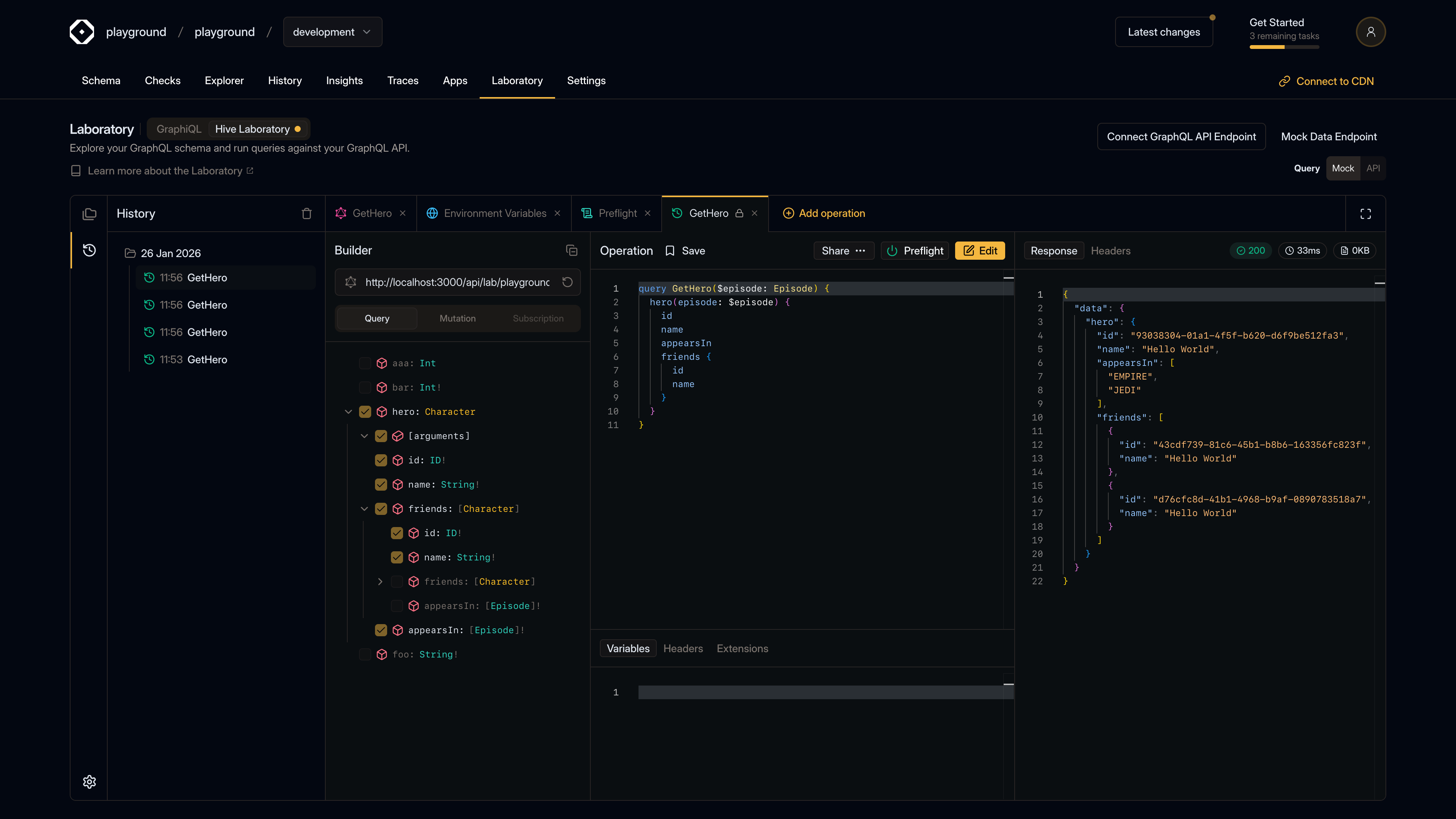
What is History?
History automatically records:
- Operation details - The query, variables, headers, and extensions used
- Response data - The complete response from the server
- Response headers - All HTTP headers returned
- Timing information - Request duration and response size
- Status codes - HTTP status codes (200, 400, 500, etc.)
- Preflight logs - Logs from preflight scripts (if used)
- Timestamps - When each operation was executed
Accessing History
To view your operation history:
- Click the History icon in the left sidebar
- The History panel opens showing all past executions
- History is organized by date for easy navigation
Viewing History Items
History List
The History panel shows:
- Grouped by date - Operations are organized by execution date
- Time stamps - Each operation shows the time it was executed
- Operation names - The name of the operation (or “Untitled”)
- Status indicators - Color-coded icons showing success/error status
- Green - Successful (2xx status codes)
- Red - Errors (4xx, 5xx, or GraphQL errors)
- Indigo - Other statuses
Opening History Items
To view a past execution:
- Click on any history item in the History panel
- It opens in a new tab showing:
- The original operation (read-only)
- The response received
- Response headers
- Preflight logs (if applicable)
- Timing and size information
History Details
When viewing a history item, you’ll see:
Response Tab
- Formatted JSON - Pretty-printed response data
- Error information - GraphQL errors if any occurred
- Status badge - Visual indicator of success/failure
- Duration badge - Request duration in milliseconds
- Size badge - Response size in kilobytes
Headers Tab
- All HTTP headers - Complete list of response headers
- Formatted display - Easy-to-read JSON format
- Status code - HTTP status code
- Content-Type - Response content type
Preflight Tab
- Preflight logs - All log messages from preflight scripts
- Color-coded logs - Different colors for info, warnings, errors
- Timestamps - When each log entry was created
- Log levels - INFO, LOG, WARN, ERROR, SYSTEM
Managing History
Deleting History Items
To delete a single history item:
- Hover over the history item
- Click the delete icon that appears
- Confirm the deletion
Deleting by Date
To delete all history for a specific date:
- Expand the date group
- Hover over the date header
- Click the delete icon
- Confirm the deletion
Warning: This deletes all operations executed on that date.
Clearing All History
To delete all history:
- Click the delete icon in the History panel header
- Confirm that you want to delete all history
Warning: This action cannot be undone. All history will be permanently deleted.
History Organization
By Date
History is automatically organized by date:
- Today - Operations executed today
- Yesterday - Operations from yesterday
- Date groups - Older operations grouped by date (e.g., “15 Jan 2024”)
Chronological Order
Within each date group, operations are sorted:
- Most recent first - Latest executions appear at the top
- Time-based - Sorted by execution timestamp
Using History for Debugging
Reviewing Failed Requests
When an operation fails:
- Check the History panel for the failed execution
- Review the error message in the response
- Check preflight logs for script issues
- Compare with successful executions
Comparing Responses
To see how responses change over time:
- Find multiple executions of the same operation
- Open each one to compare responses
- Look for differences in data or structure
Understanding API Behavior
Use history to:
- Track changes - See how API responses evolve
- Identify patterns - Notice recurring errors or issues
- Performance analysis - Compare request durations
- Debug issues - Review what was sent and received
History and Subscriptions
For subscription operations, history shows:
- Subscription status - Whether the subscription is active
- Multiple responses - All messages received from the subscription
- Real-time updates - New messages appear as they arrive
- Response timeline - Messages ordered by timestamp
Best Practices
Regular Cleanup
- Delete old history - Remove history you no longer need
- Keep important runs - Don’t delete history for operations you’re debugging
- Organize by date - Use date-based deletion to clean up old data
Using History Effectively
- Name your operations - Named operations are easier to find in history
- Review before deleting - Make sure you don’t need history before clearing it
- Compare responses - Use history to see how API responses change
- Debug systematically - Review history when troubleshooting issues
Privacy and Security
- Sensitive data - History contains all request and response data
- Local storage - History is stored locally in your browser
- Clear when needed - Delete history when working with sensitive information
- Team sharing - Be aware of what history is visible to your team (if applicable)
Keyboard Shortcuts
⌘J/Ctrl+J- Open Command Palette (can access history)
Troubleshooting
History Not Appearing
If history items don’t appear:
- Make sure you’ve executed at least one operation
- Check that the History panel is open
- Refresh the Laboratory if needed
History Not Saving
If history isn’t being saved:
- Check browser storage permissions
- Ensure you have enough storage space
- Check browser console for errors
Missing History Items
If history items are missing:
- Check if they were deleted
- Verify browser storage hasn’t been cleared
- Check if you’re looking at the correct date range
Performance Issues
If history is slow to load:
- Delete old history items
- Clear history for very old dates
- Keep history manageable in size
Limitations
- Browser storage - History is stored locally and limited by browser storage quotas
- No cloud sync - History is not synced across devices (unless using organization features)
- Session-based - History persists until browser data is cleared
- Size limits - Very large responses may impact performance